

Sprite Slicer
The Sprite Slicer tool cuts a single texture into a series of named frames that the engine can use for sprite animation, atlas-based rendering, or individual sprites. Once sliced, frames are referenced by name or index and do not require the original atlas to be split into separate files.
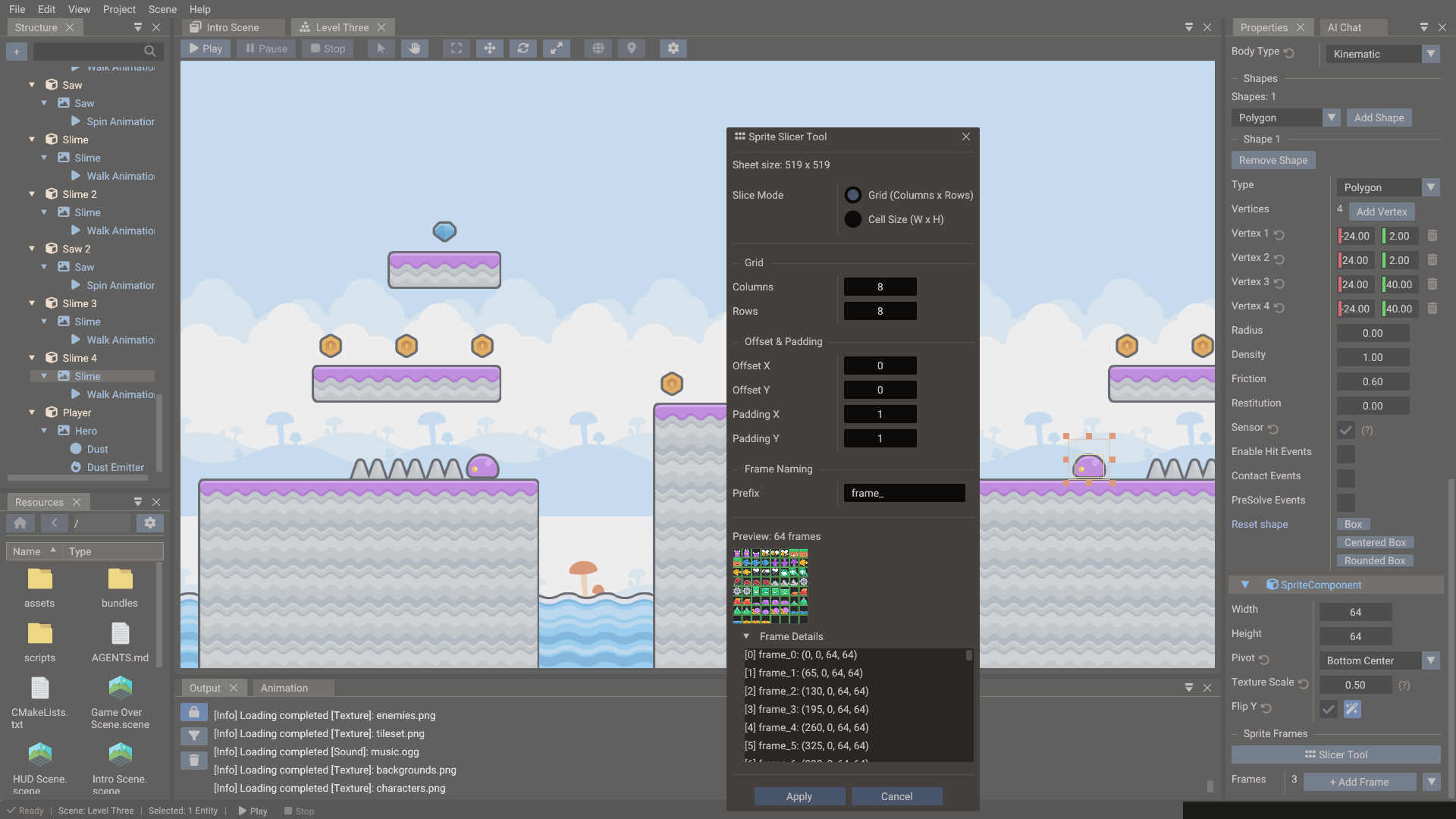
Opening the Sprite Slicer
Select an entity with a Sprite component. In the Properties window, click Slicer Tool in the component's Sprite Frames section. The slicer works on the texture the sprite already uses, so assign the sprite sheet first.
Slice modes
| Mode | When to use |
|---|---|
| Grid (Columns x Rows) | You know how many frames the sheet has across and down; the cell size is derived from the sheet size |
| Cell Size (W x H) | You know the pixel size of one frame; the number of columns and rows is derived |
Both modes cut a regular grid, the fastest workflow for sprite sheets such as animated characters, explosion effects, or item icons. For frames of different sizes, slice the regular part and adjust the rects in the component's Sprite Frames list afterwards.
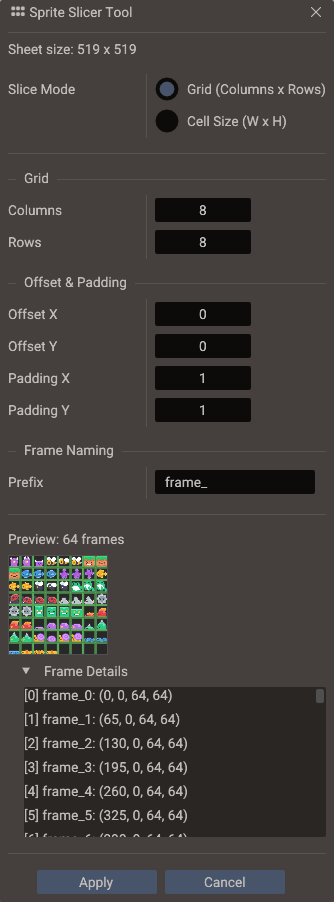
Grid slicing
- Pick a slice mode, then enter Columns and Rows, or Cell Width and Cell Height.
- Set Offset X / Y (inset of the first cell) and Padding X / Y (gap between cells) if the sheet has margins or gutters.
- Change the Prefix under Frame Naming if you want names other than
frame_0,frame_1, …. Frames are numbered left to right, top to bottom. - Check the Preview: it shows how many frames the grid produces over a thumbnail of the sheet. Expand Frame Details to see each frame's name and rect in pixels. Cells that run past the edge of the sheet are clipped to it.
- Click Apply. The sprite's frame list is replaced with the new frames, as one undoable step.
Frame names are used by Sprite::setFrame(name) and Sprite::startAnimation(name, …).
SpriteAnimation::setAnimation uses frame indices; identify the action entity by its
entity name if you need a searchable label.
Working with frames at runtime
After slicing, use frame names or indices in scripts and components:
sprite = Sprite(scene)
sprite:setTexture("characters/hero.png")

-- Show a specific frame by name or index
sprite:setFrame("walk_01")

-- Animate through a frame index range (interval in milliseconds)
anim = SpriteAnimation(scene)
anim:setTarget(sprite)
anim:setAnimation(1, 8, 100, true)   -- startFrame, endFrame, interval (ms), loop
anim:start()
Tips
- Keep sprite sheets power-of-two in size for best GPU compatibility.
- Use consistent frame naming conventions (
walk_00…walk_07) so animation ranges are easy to specify. - A single texture can contain multiple animation sequences — just name them clearly.
- For tilemaps and tilesets, use the Tileset Slicer instead, which is designed for tile index workflows.