

Your First Project
This walkthrough uses the current Doriax editor workflow. Older Doriax/Supernova examples often start by writing a full scene in code; that still works for low-level runtime use, but day-to-day projects should start in the editor: create a project, author a scene, add entities and components, attach scripts, then run in play mode.
Create a project
Open the Doriax editor. If there is no saved project to reopen, the editor starts with a temporary project and a new 3D scene; there is no startup dialog. Choose File → Save All, enter a name, and select an empty directory before doing work you want to keep. See Project Workflow for the complete startup and save behavior.
The saved project stores the editable source for your game: scenes, assets, Lua scripts, C++ scripts, bundles, and export settings.
A typical project contains:
- Assets - textures, models, audio, fonts, and other resources
- Scripts - Lua and/or C++ game code
- Scene files - YAML scene data edited by the editor and exported into runtime code
- Project settings - build targets, scene references, and export configuration
Create a scene
Use the initial 3D scene, or create a 2D, 3D, or UI scene with
Scene → New Scene or from the Structure panel. Save the scene separately with a
stable name such as main, level_01, or menu.
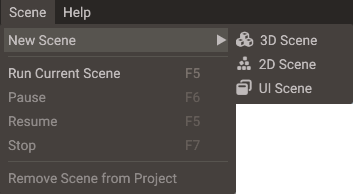
A new 3D scene starts with a Sun (a directional light that casts shadows) and a Sky. 2D and UI scenes start empty and draw through a built-in camera until you add one.
Scene type controls editor defaults such as camera setup and viewport behavior. It does
not create a different runtime type; every scene is still a Scene that owns entities,
components, and systems.
Add entities
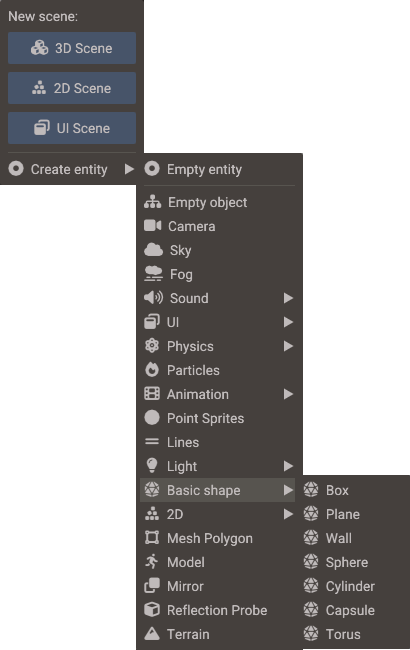
Open the Structure panel's create menu: click + at the top of the panel and point at Create entity, or right-click empty space in the panel. The most important first distinction is:
| Menu item | What it creates | Where it appears |
|---|---|---|
| Empty entity | An entity ID with no Transform component |
The non-hierarchical area of Structure |
| Empty object | An entity with a Transform component |
The hierarchy area of Structure |
Everything in the scene is an entity. An entity is only an ID; it owns no position,
mesh, physics body, script, or audio by itself. Components give the entity data and
behavior. Transform is the component that makes an entity spatial and allows it to
participate in the hierarchy.
For a first visible object, choose one of these:
- In a 2D scene, create 2D > Sprite.
- In a 3D scene, create Basic shape > Box or Model.
- In a UI scene, create UI > Button, Text, or Image.
Edit components
Select the entity and use the Properties window. You will see the components attached to that entity.
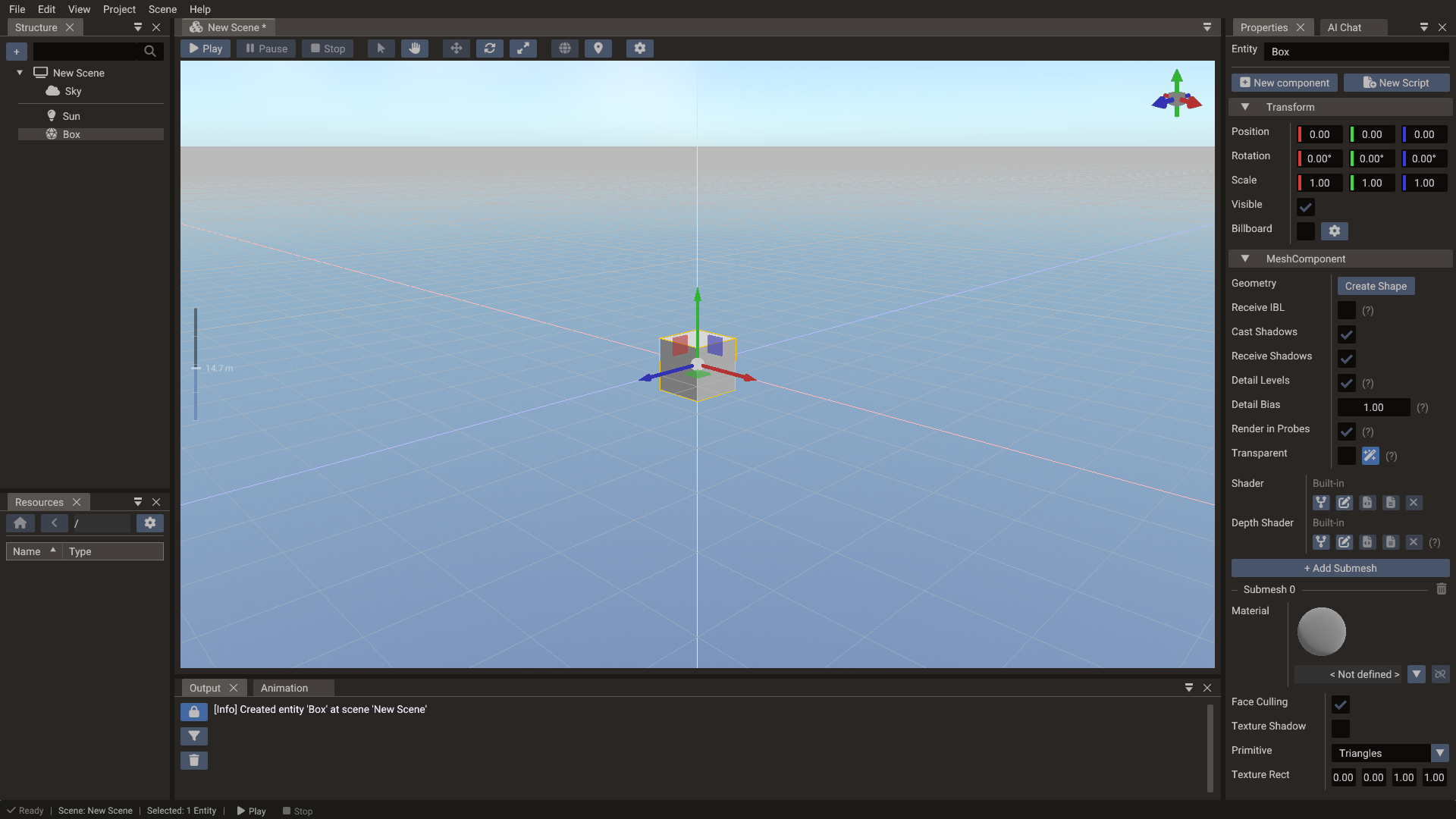
A sprite, for example, is not a special kind of entity; it is an entity with
components such as Transform, MeshComponent, and SpriteComponent.
Common first edits:
| Component | Edit |
|---|---|
Transform |
Position, rotation, scale, visibility, parent hierarchy |
SpriteComponent |
Width, height, frame, pivot, texture region |
MeshComponent |
Material, color, shadows, transparency, primitive data |
CameraComponent |
Projection, clipping, target, render-to-texture |
ScriptComponent |
Lua or C++ scripts attached to the entity |
Add a script
Select the entity and click New Script at the top of the Properties window. Choose
Lua Script — the fastest to iterate on — enter a name, and click Create. The
editor writes the .lua file, adds a ScriptComponent to the entity, and links the
script to it. Open the file with the source button on the script entry, or double-click
it in the Resources Browser.
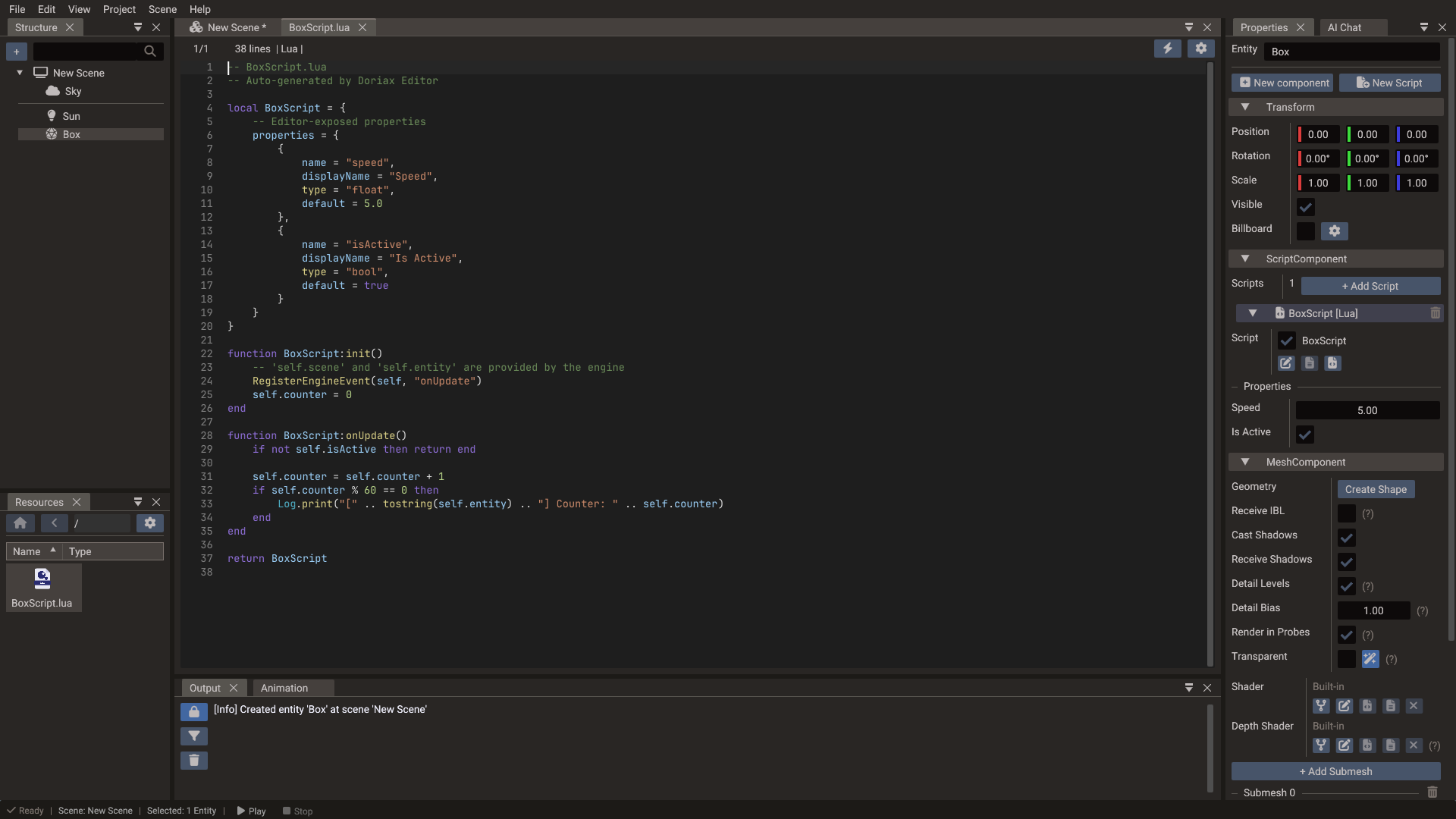
The generated Lua script returns a table. The engine creates an instance, injects
self.scene and self.entity, then calls init() when the scene starts.
local PlayerController = {
    properties = {
        { name = "speed", displayName = "Speed", type = "float", default = 5.0 },
        { name = "isActive", displayName = "Is Active", type = "bool", default = true }
    }
}

function PlayerController:init()
    RegisterEngineEvent(self, "onUpdate")
end

function PlayerController:onUpdate()
    if not self.isActive then return end
    if Input.isKeyPressed(Input.KEY_RIGHT) then
        local object = Object(self.scene, self.entity)
        object.position = object.position + Vector3(self.speed * Engine.deltatime, 0, 0)
    end
end

return PlayerController
For C++ scripts, the editor can generate either a subclass script or a ScriptBase
script. C++ scripts use DPROPERTY for values that should appear in the Properties window and
REGISTER_ENGINE_EVENT for callbacks.
Mixing Lua and C++ entry points
Editor-authored projects should not rely on both main.lua and C++ DORIAX_INIT
code to set the startup scene. If both paths call Engine.setScene() /
Engine::setScene(), one startup path can replace the other. Use NO_CPP_INIT or
NO_LUA_INIT when you intentionally want only one entry point.
Run the project
Press Play in the editor. The editor saves a play-mode snapshot, starts the runtime scene, initializes scripts, and restores editable scene state when you stop.
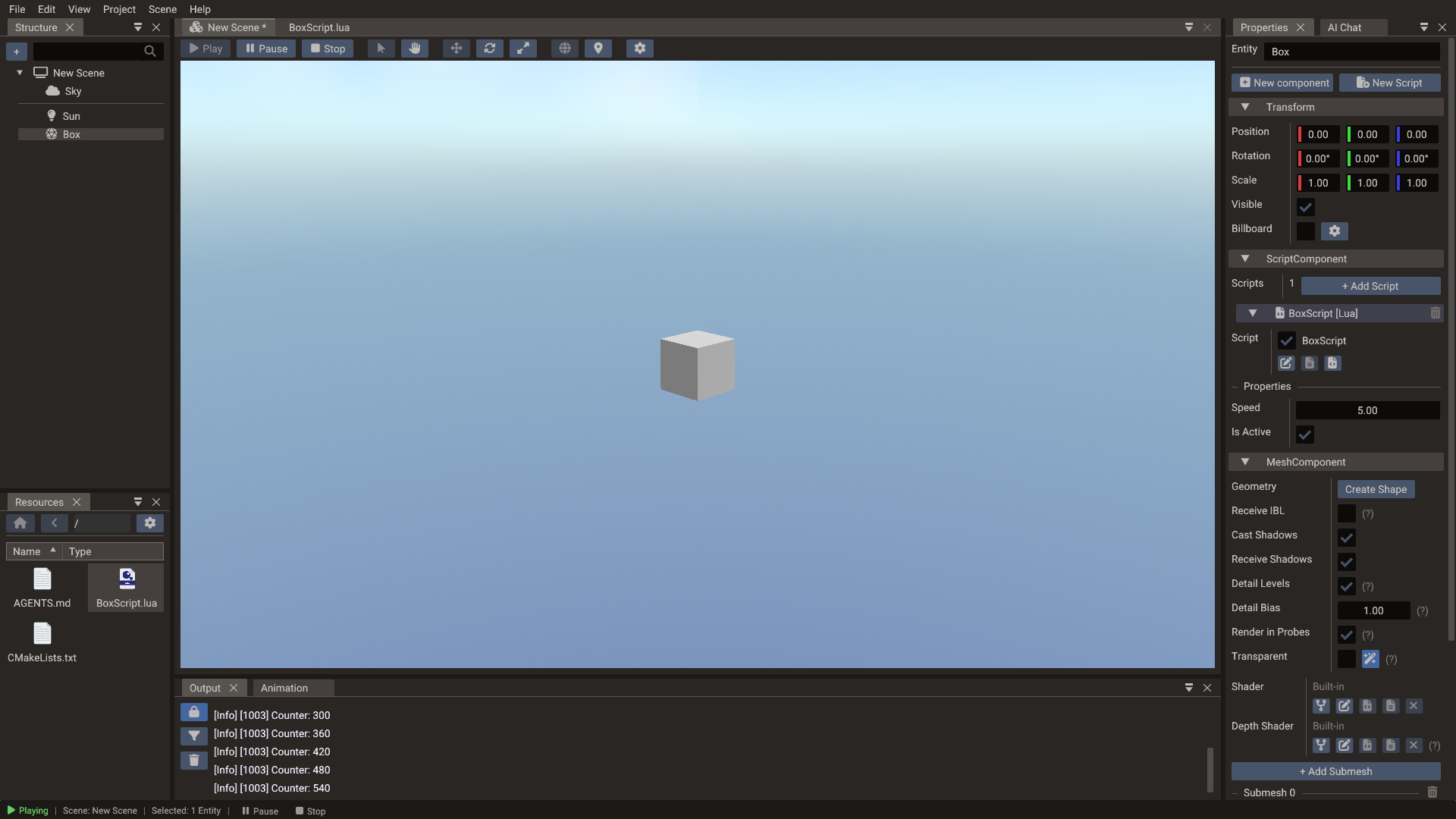
If something does not appear, check these in order:
- The intended scene is selected or configured as the start scene.
- The entity has the required components.
- Visible/spatial entities have a
Transform. - The active camera can see the entity.
- The script is enabled in
ScriptComponent. - The output panel has no Lua or C++ errors.