

First 2D Scene
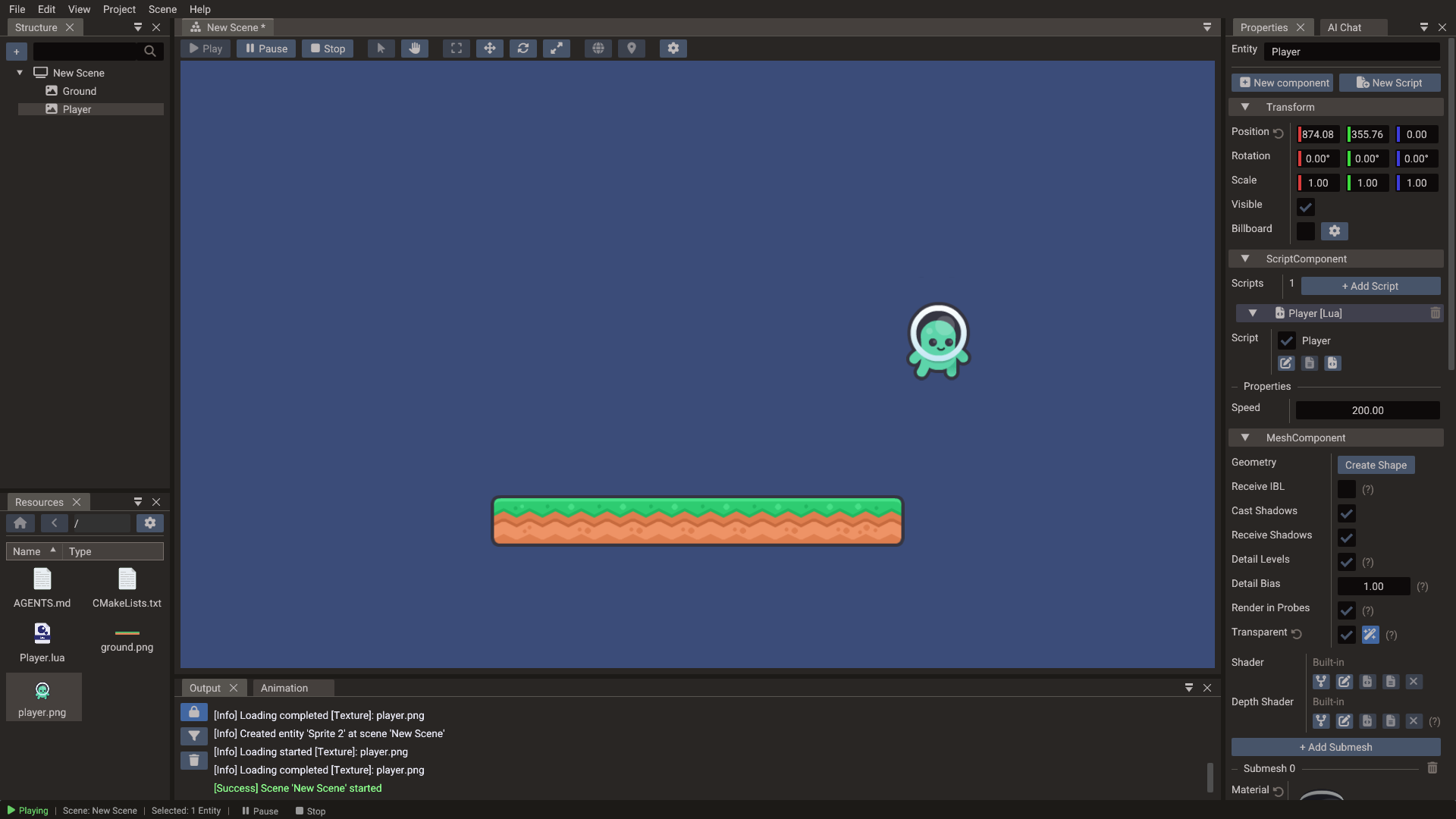
This tutorial builds a complete small 2D scene from scratch and introduces the core workflow you will reuse in larger projects: create a scene, add entities, attach components, write a script, and test in play mode.
What you will build
By the end of this tutorial you will have:
- A 2D scene with a visible sprite
- A canvas set up for your design resolution
- A Lua script that moves the sprite with keyboard input
- A
Body2Dphysics body ready for collision
1. Create the project and scene
- Open the editor and choose File → New Project to start with a fresh temporary project.
- Choose Scene → New Scene → 2D Scene.
- Choose File → Save All. The editor asks where each unsaved scene goes — name the
2D one
main— and then where the project itself lives: enter a project name and select an empty directory. - The initial 3D scene was never saved, so the new 2D scene replaces it — there is nothing to remove.
2. Add a sprite entity
- Copy a PNG into the project folder, or drag one from your file manager into the Resources Browser.
- Drag the PNG from the Resources Browser into the viewport. The editor creates a Sprite entity at the drop point, sized to the image.
- Press F2 and rename it
Player.
You can also create the sprite first with + → Create entity → 2D → Sprite and then drop the PNG onto it in the viewport to give it a texture.
3. Configure the camera
A 2D scene does not need a camera entity: it draws through a built-in orthographic camera that frames the canvas. The canvas belongs to the project — open Project → Project Settings → Canvas and check that:
- Canvas Width / Height match your design resolution, for example
1280 × 720. - Scaling Mode is Letterbox or Fit Width.
Add a Camera entity (+ → Create entity → Camera) only when the view has to move, for example to follow the player. The first camera you add becomes the scene's main camera.
4. Add a script
- Select Player and click New Script at the top of the Properties window.
-
Choose Lua Script, enter
Playeras the module name, and click Create. The editor writesPlayer.luainto the folder selected in the dialog, adds aScriptComponentto the entity, and links the script to it.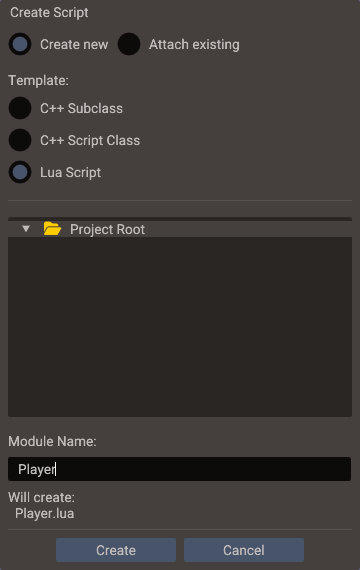
-
Open the file with the source button on the script entry, or double-click it in the Resources Browser, and replace its contents with the following movement code:
local Player = { properties = { { name = "speed", displayName = "Speed", type = "float", default = 200.0 } } } function Player:init() RegisterEngineEvent(self, "onUpdate") end function Player:onUpdate() local obj = Object(self.scene, self.entity) local dt = Engine.deltatime local dx, dy = 0, 0 if Input.isKeyPressed(Input.KEY_LEFT) then dx = dx - self.speed * dt end if Input.isKeyPressed(Input.KEY_RIGHT) then dx = dx + self.speed * dt end if Input.isKeyPressed(Input.KEY_UP) then dy = dy + self.speed * dt end if Input.isKeyPressed(Input.KEY_DOWN) then dy = dy - self.speed * dt end -- Object.position is returned by value; assign the updated vector back. obj.position = obj.position + Vector3(dx, dy, 0) end return Player -
Save the file (Ctrl+S). The Speed property appears on the script entry in the Properties window.
5. Add physics (optional)
To make the sprite collide with walls:
- Select the Player entity.
- Click New component and choose 2D Physics Body (type
bodyin the search field to find it). - Set the Body Type to Kinematic (for a player controlled by script) or Dynamic (for full physics simulation).
- Leave the shape type on Polygon and click Add Shape. The polygon starts as a box the size of the sprite; edit its vertices if the sprite needs a tighter outline.
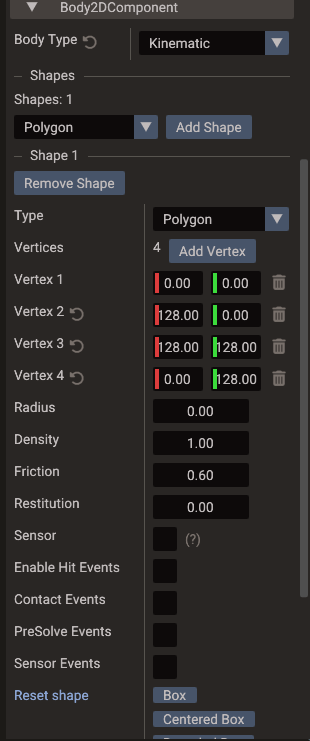
Give walls a 2D Physics Body with Body Type set to Static and a polygon shape to block the player's movement.
6. Run and test
Press Play in the toolbar. The sprite should be visible and respond to arrow key input.
If the sprite is not visible, check in order:
- The scene is set as active in project settings.
- The entity has a Sprite component with a valid texture path.
- If you added a Camera entity, it is orthographic and frames the sprite.
- The canvas size and scaling mode are sensible for the editor window size.
- The script entry is enabled in the ScriptComponent.
Press Stop when done — the editor restores the scene to its pre-play state.
7. Next steps
- Add more sprites and create a tilemap background with the Tileset Slicer.
- Animate the player with the Sprite Slicer and
SpriteAnimation. - Add a HUD overlay using a UI scene.
- Continue with 2D Graphics, Input, and Physics.