

User Interface
Doriax includes a complete runtime UI system for menus, HUDs, overlays, and in-game controls. UI entities are regular ECS entities with UI-specific components and layout state. Because the UI system is built on the same ECS foundation as the rest of the engine, you can combine UI with 3D, 2D, and scripting seamlessly.
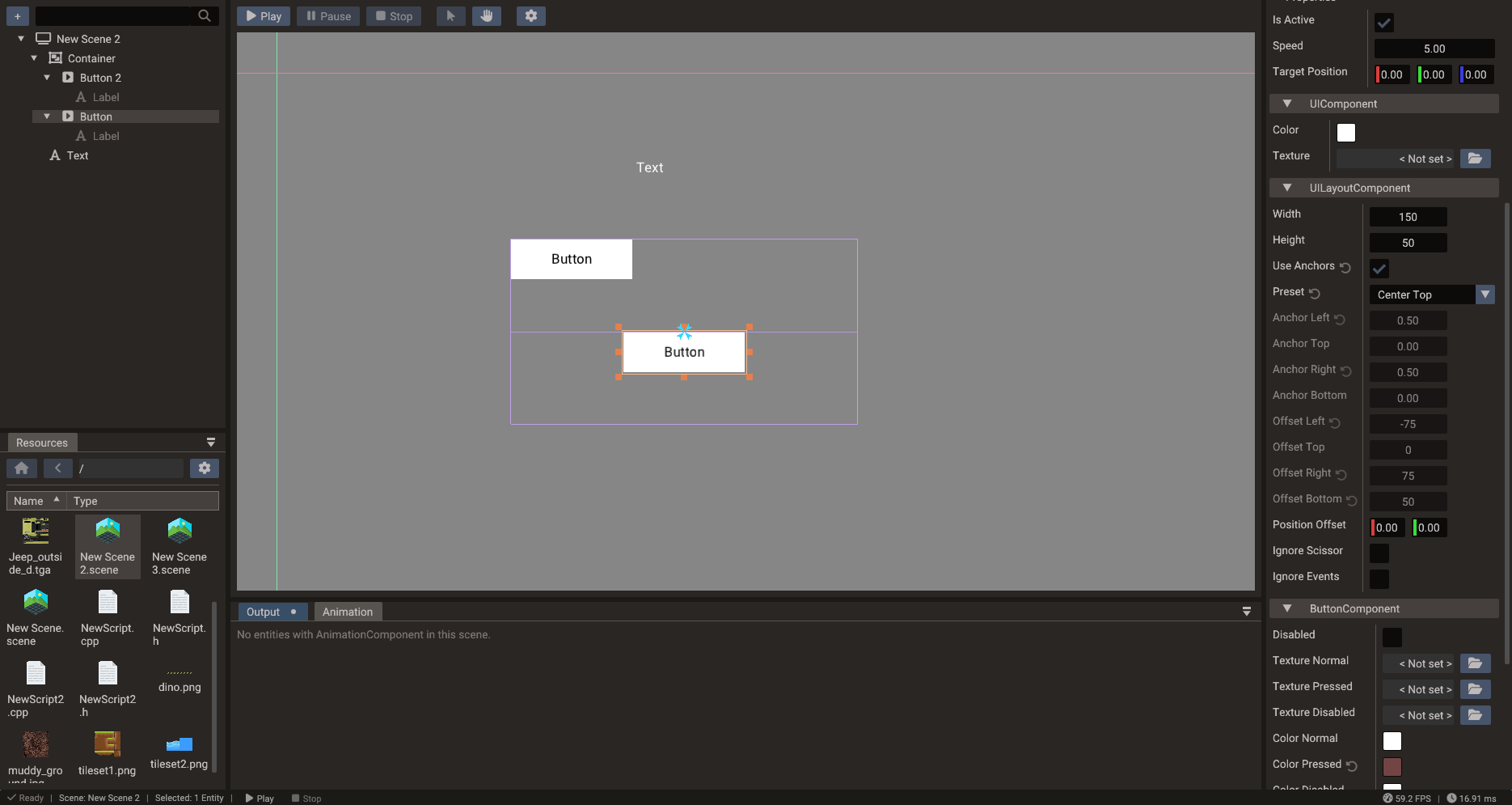
UI scenes
For anything beyond a single HUD element, put UI into its own UI scene and add it as a scene layer on top of your gameplay scene.
-- Startup: run gameplay and HUD simultaneously
Engine.setScene(gameplayScene)
Engine.addSceneLayer(hudScene)
This approach keeps gameplay entities separate from screen-space widgets, makes it easy to swap menus without touching gameplay data, and lets you load/unload UI independently (for example, showing a pause menu without reloading the game level).
UI entities are laid out in their scene's camera space. In a 2D or UI scene that is the canvas, but in a 3D scene it is the world, so a Text or Image created there is placed among the models rather than on the screen. A 3D game's HUD therefore goes in a UI scene, even a single element, added as a layer or as a child scene of the level.
Typical UI scene examples:
| UI Scene | Content |
|---|---|
| HUD | Health bar, ammo counter, minimap overlay |
| Main menu | Title, Play/Settings/Quit buttons |
| Pause menu | Resume, Options, Quit to menu |
| Settings screen | Sliders, dropdowns, back button |
| Dialog / modal | Confirmation popup, item description panel |
| Loading screen | Progress bar and spinner |
UI widget classes
| Class | Purpose |
|---|---|
UILayout |
Base for all UI elements — anchors, size, and margin |
Image |
Textured or solid-color rectangular region, 9-patch scaling |
Text |
Unicode text with font, size, color, and multiline support; shapes complex scripts and right-to-left |
Button |
Interactive button with normal/over/pressed state textures and label |
Panel |
Framed or colored container with optional 9-patch background |
TextEdit |
Single-line text input with placeholder and password mode |
Scrollbar |
Horizontal or vertical scroll control with step and onChange callback |
Progressbar |
Horizontal or vertical fill display |
Container |
Automatic layout for vertical, horizontal, or wrapped children |
Polygon |
Simple polygon drawing, usable in 2D and UI scenes |
Text and fonts
Set a font with Text.font, pointing at a .ttf,
.otf or .ttc file in the project. Leaving it unset uses the fonts built into the
engine: a Roboto subset covering Latin, Cyrillic, Greek and Vietnamese, and an Arabic
subset of Noto Sans Arabic.
Those two always sit at the end of the chain, so a codepoint the chosen font does not carry is drawn from them. An Arabic-only font still renders Latin digits and labels, and a Latin-only font still renders Arabic. A codepoint no font covers is drawn as the missing-glyph box.
For projects needing several custom faces at once, assign up to three additional fonts
to slots 1 through 3. They are tried in numeric order and empty slots are skipped:
label.font = "fonts/MyLatin.ttf"
label:setFont(1, "fonts/NotoKufiArabic.ttf")
label:setFont(2, "fonts/NotoSansCJK.ttc")
The font property is an alias for slot 0, so replacing it preserves the fallback
chain. C++ has the same setFont(index, path) and getFont(index) overloads. At direct
component level, TextComponent::font is a fixed four-element FontArray: the main
font followed by the three fallbacks. See the Text.font
reference for all overloads and migration from the former fontFallbacks property.
In the editor, set the main face in the Text component's Font row. Use the stacked layers button to open Additional fonts, where Fallback 1–3 can each be browsed, cleared, or filled by dragging a font from Resources. All slots are saved and exported as one ordered chain.
Complex scripts
Strings are shaped before being drawn, so scripts that need contextual glyph forms work with no extra setup. Arabic letters take their initial, medial, final or isolated shape from their neighbours, ligatures and kerning are applied, and right-to-left runs are reordered by the Unicode Bidirectional Algorithm. A label mixing Arabic and Latin lays each run out in its own direction.
Shaping is per font, so a run only joins within the font that covers it. If Arabic looks disconnected, the letters are most likely being drawn from a fallback that has no Arabic shaping rules — set an Arabic font explicitly and the joining returns.
Note
A drawn glyph does not map one to one onto a codepoint. Shaping can merge several
codepoints into one ligature or expand one into a base plus marks, so
getNumChars counts codepoints, not
glyphs.
Anchors and layout
Every UI element inherits from UILayout which exposes an anchor system for
resolution-independent placement. Anchors define how an element is positioned and sized
relative to its parent.
Anchor presets
Use anchor presets for the most common layouts:
Image logo(&scene);
logo.setAnchorPreset(AnchorPreset::CENTER);
logo.setTexture("ui/logo.png");

Image header(&scene);
header.setAnchorPreset(AnchorPreset::TOP_WIDE);  // stretches full width at the top
Available presets include TOP_LEFT, CENTER_TOP, TOP_RIGHT, CENTER_LEFT,
CENTER, CENTER_RIGHT, BOTTOM_LEFT, CENTER_BOTTOM, BOTTOM_RIGHT, LEFT_WIDE,
RIGHT_WIDE, TOP_WIDE, BOTTOM_WIDE, and FULL_LAYOUT (stretch to fill parent).
The layout places an anchored element every frame, so to animate its position use a relative track, which moves it by its offset from the anchors.
Manual anchors
For precise control, set the four anchor points directly. Anchor point values range from 0 (left/top of parent) to 1 (right/bottom of parent):
widget.anchorPointLeft   = 0.25
widget.anchorPointRight  = 0.75
widget.anchorPointTop    = 0.0
widget.anchorPointBottom = 0.5
Building UI in code
In Lua, anchorPreset and a widget's text/label are properties; parenting is done by
calling addChild on the parent. Button click handlers live on the ButtonComponent
(onPress / onRelease).
scene = Scene()

-- Background panel
panel = Panel(scene)
panel.anchorPreset = AnchorPreset.CENTER
panel:setSize(400, 300)
panel:setTexture("ui/panel_bg.png")

-- Label
title = Text(scene)
panel:addChild(title)
title.anchorPreset = AnchorPreset.CENTER_TOP
title.text = "Game Over"
title.fontSize = 36

-- Button
btn = Button(scene)
panel:addChild(btn)
btn.anchorPreset = AnchorPreset.CENTER_BOTTOM
btn.label = "Restart"

local btnComp = btn:getButtonComponent()
btnComp.onPress = function()
    SceneManager.loadScene("Game")
end

Engine.setScene(scene)
Scene uiScene;

Panel panel(&uiScene);
panel.setAnchorPreset(AnchorPreset::CENTER);
panel.setSize(400, 300);
panel.setTexture("ui/panel_bg.png");

Text title(&uiScene);
panel.addChild(&title);
title.setAnchorPreset(AnchorPreset::CENTER_TOP);
title.setText("Game Over");
title.setFontSize(36);

Button btn(&uiScene);
panel.addChild(&btn);
btn.setAnchorPreset(AnchorPreset::CENTER_BOTTOM);
btn.setLabel("Restart");

btn.getComponent<ButtonComponent>().onPress = []() {
    SceneManager::loadScene("Game");
};
UI events and input
UI widgets receive pointer and touch events automatically. The Button fires onPress
and onRelease; TextEdit fires onChange when the text changes; Scrollbar fires
onChange with the new scroll value.
A button shows its state with a texture and a tint colour per state, and it can also grow
when hovered or pressed (scaleHovered, scalePressed). With a Transition Time, the
colour and scale change over that time instead of at once, so menu hover effects need no
script. See Button transitions.
To prevent UI clicks from also triggering gameplay input (such as shooting when the player taps a UI button), call:
9-patch scaling
Image and Panel support 9-patch (nine-slice) scaling so borders remain sharp as
the widget resizes. Set the border insets to define the corner and edge regions that
should not be stretched:
Image frame(&scene);
frame.setTexture("ui/frame.png");
frame.setPatchMargin(12, 12, 12, 12);  // left, right, top, bottom pixel margins
frame.setSize(300, 200);
Containers
Container arranges its children automatically in a vertical stack, horizontal row, or
wrapped grid. This is useful for inventory grids, option lists, and toolbars where the
number of items changes at runtime.
list = Container(scene)
list.type = ContainerType.VERTICAL   -- type is a property; values: VERTICAL, HORIZONTAL, VERTICAL_WRAP, HORIZONTAL_WRAP

for i = 1, 5 do
    local item = Button(scene)
    list:addChild(item)
    item.label = "Item " .. i
end
Canvas size and scaling
The UI canvas size defines the logical coordinate space. Set a fixed canvas size that matches your design resolution and choose a scaling mode:
| Scaling mode | Behavior |
|---|---|
FITWIDTH |
Scale to fit the horizontal axis; may letterbox vertically |
FITHEIGHT |
Scale to fit the vertical axis; may letterbox horizontally |
LETTERBOX |
Fit inside the screen maintaining aspect ratio |
CROP |
Fill the screen, cropping edges |
STRETCH |
Stretch to fill (may distort) |
NATIVE |
Use actual screen pixel resolution |
Canvas size and scaling are configured on the global Engine, not on the scene:
See Multiple Resolutions for the full scaling guide, including how to keep the UI crisp over a scene that uses a fixed render resolution.
Practical guidance
- Design against a fixed canvas size (e.g. 1920×1080 or 1280×720) for predictable layouts across screen sizes.
- Use anchor presets wherever possible; reserve manual anchor values for non-standard layouts.
- Separate HUD, pause menu, and modal dialogs into different root containers or separate UI scenes.
- Keep UI textures and fonts organized in a dedicated asset folder.
- Use
Containerfor lists and grids so the layout adjusts automatically when items are added or removed. - Test UI scaling on the target aspect ratios early in development.